


Why Microsoft 365 Copilot Chat
isn’t enabled by default in European Tenants

We don’t see Copilot Chat
“We have an eligible Microsoft 365 tenant, Copilot Chat is supposed to be included at no extra cost, but my users don’t see it. Is something broken?”
Nothing is broken. In European Economic Area (EEA) and Swiss tenants, Microsoft has deliberately treated Copilot Chat differently from the rest of the world. It’s not a bug, it’s not an oversight, it’s a regulatory design choice. And it has real implications for how you, as a partner or IT admin, roll Copilot Chat out to customers.
Let’s unpack it.
1. What Copilot Chat actually is
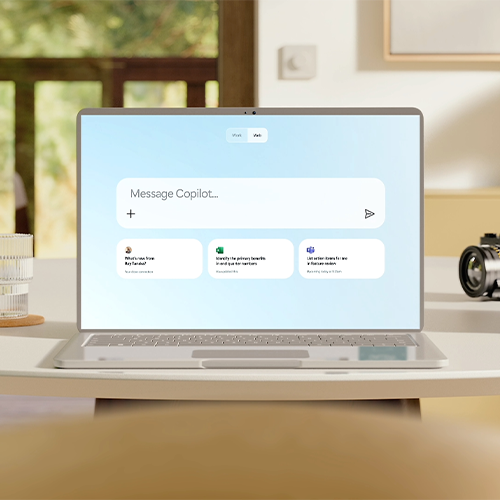
Microsoft 365 Copilot Chat is the web-grounded, no-additional-cost chat experience available to users with most Microsoft 365 and Office 365 paid licenses (Business Basic through E5, F1/F3, A1 to A5, G3/G5, Teams Essentials and above). It runs inside the Microsoft 365 Copilot app, Outlook, Teams and Edge, and it’s signed in with a Microsoft Entra (work or school) account, not a personal Microsoft account.
It’s the natural on-ramp before customers commit to a full Microsoft 365 Copilot license. So the question of whether it’s visible to your users by default matters a lot.
2. Why EEA tenants are treated differently
For tenants whose primary location is in the European Economic Area or Switzerland, Microsoft has implemented a separate pinning behaviour.
- For EEA and Switzerland tenants, as of 25 July 2025, the Pin Microsoft 365 Copilot Chat setting no longer governs the Microsoft 365 Copilot app, meaning admins need to manage visibility through the controls described below.
- For tenants outside the EEA and Switzerland, the same change took effect on 28 January 2026.
Behind this lies the broader European regulatory environment: the EU AI Act, GDPR, and the layered guidance around large language models and data processing. Microsoft’s design choice, and it’s a sensible one, is to make AI activation in EU tenants a deliberate action by the customer rather than a silent default. You turn it on. You know what you’ve activated.
That’s a fine principle. But it does explain why your users don’t suddenly see a Copilot icon appear in their navigation.


3. The practical impact for admins and partners
In day-to-day reality, this means one extra step in the Microsoft 365 admin center before your end users get a smooth Copilot Chat experience.
Inside the admin center you can:
- Go to the Copilot Control System page under Settings.
- Manage the Pin Microsoft 365 Copilot Chat in Microsoft 365 apps setting. Choose Pin to surface Chat in Outlook and Teams navigation, or Do not pin if your governance posture isn’t ready.
- Optionally manage web search in Copilot Chat via the Allow web search in Copilot policy (Cloud Policy service for Microsoft 365). This controls whether Copilot Chat sends queries to Bing for grounding, or relies solely on the underlying LLM.
- Manage tenant-wide availability of the Copilot app through Integrated Apps in the Microsoft 365 admin center, including the option to scope it to specific users or groups.
None of this is technically complex. But the order of operations, and especially the conversation with your customer before you flip the switch, is where the value sits.
4. The conversation matters more than the click
After rolling this out at multiple customers: never enable Copilot Chat for a customer without a conversation first.
Not because anything will legally break the moment you pin it. But because most customers genuinely haven’t thought through:
- Governance: who is allowed to use Copilot Chat, and for which use cases?
- Data handling: what does web-grounded actually mean for their staff? Are users aware that prompts may include web search queries unless that’s disabled?
- Acceptable use: what is Copilot Chat not meant to be used for inside the organisation?
- Communication: are users going to suddenly see an AI assistant appear in Outlook and Teams without warning? That’s a change-management moment, not just a tickbox.
A 30-minute conversation up front saves a lot of awkward conversations later.


5. A simple rollout playbook
If you’re a TD SYNNEX partner planning to enable Copilot Chat for an EEA customer, here’s a clean sequence:
- Confirm eligibility: Check that the customer has one of the qualifying licences (Business Basic and up, E3/E5, F1/F3, A-series, G-series, or Teams Enterprise/Essentials/Rooms).
- Align on governance: Agree on acceptable use, web-search policy, and which user groups should see Copilot Chat first.
- Decide on pinning: Pin Copilot Chat in Microsoft 365 apps via the Copilot Control System if you want it visible in Outlook and Teams navigation.
- Manage the Copilot app through Integrated Apps: Scope it tenant-wide, or to specific Entra groups for a phased rollout.
- Communicate to end users: Send a short note explaining what Copilot Chat is, what it isn’t, and where to learn more.
- Monitor adoption: Use the Microsoft 365 Copilot Chat usage dashboard in the admin center to track active users, prompts per user, and surface-level usage.
The bottom line
Copilot Chat in European tenants isn’t a “set it and forget it” feature. It’s a deliberate activation by design, in line with EU regulatory expectations. That’s actually a gift to partners: it forces the right conversation with the customer before the technology arrives on their users’ screens.
Don’t enable Copilot Chat just because you can. Align, explain, pin, and then let your users get to work.
A small thing, but an important small thing.